Squawks
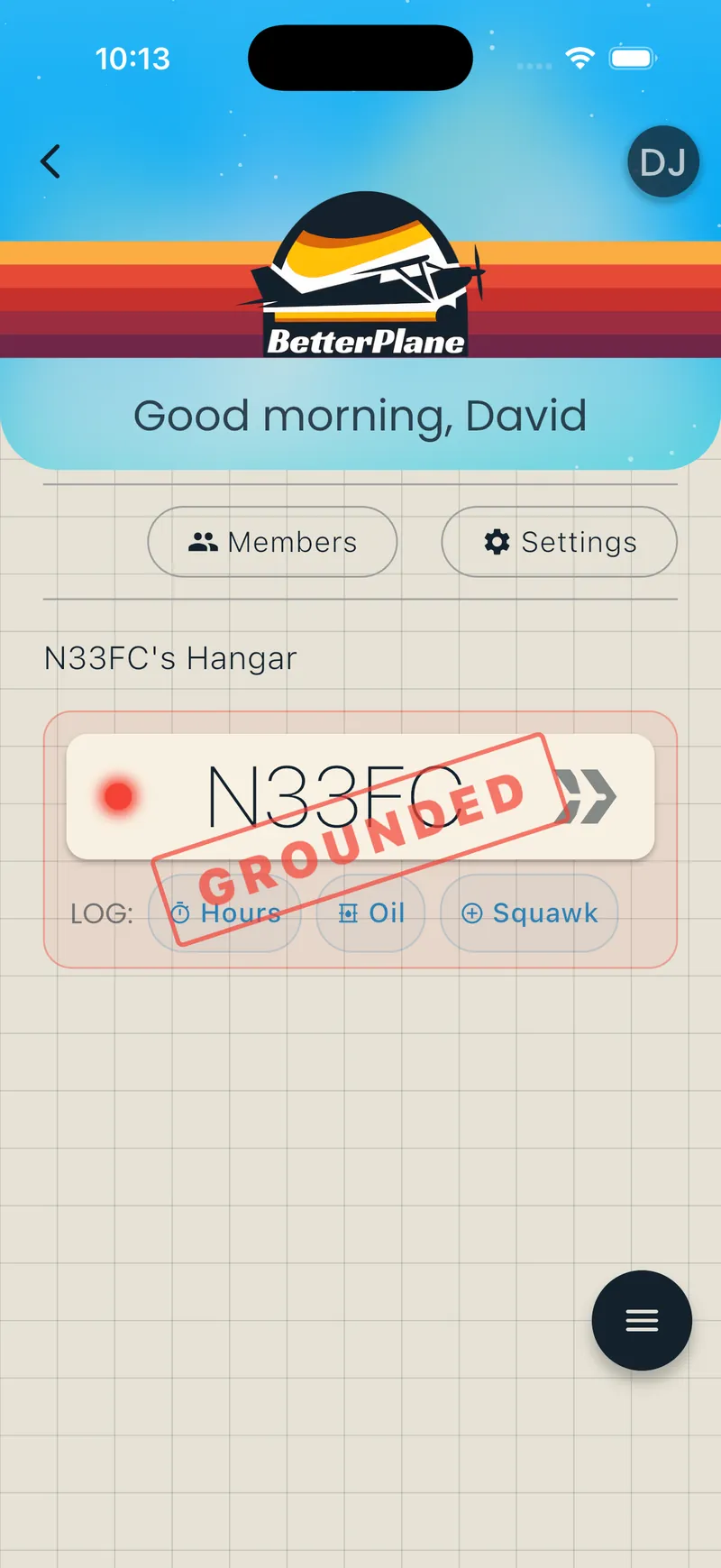
A squawk is a maintenance discrepancy, something you noticed that needs attention. Log it when you find it, and it stays on the list until someone resolves it. Everyone in the hangar can see squawks and comment on them, and an open grounding squawk marks the aircraft GROUNDED on the hangar screen.
Creating a squawk
Section titled “Creating a squawk”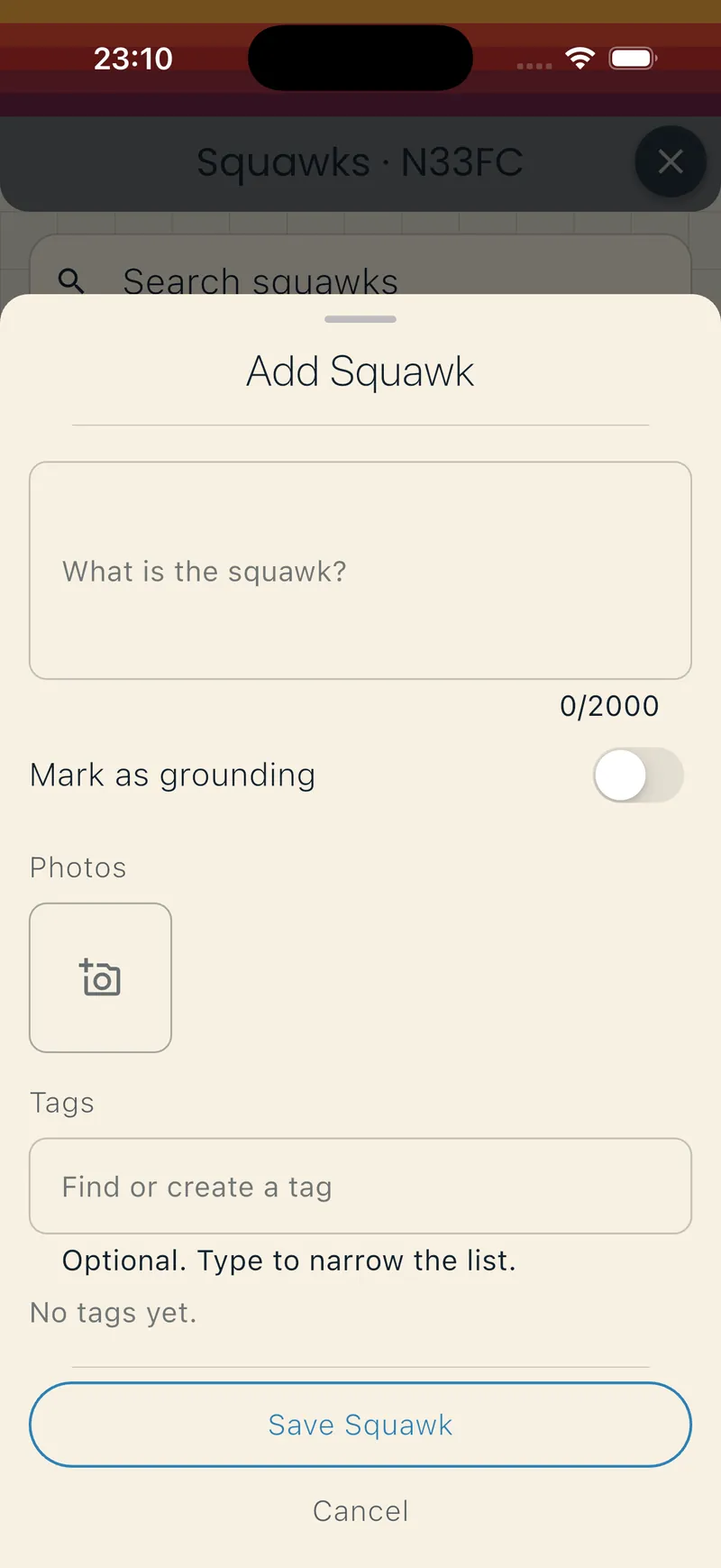
You need the Officer or Manager role to create squawks.
From the hangar screen
Section titled “From the hangar screen”- Tap the Squawk quick-action pill on the aircraft card.
- Enter a description.
- Turn on Mark as grounding to record the squawk as grounding (see Grounding squawks).
- Add tags or photos if needed.
- Tap Save Squawk.
From the squawk list
Section titled “From the squawk list”- Open the aircraft and tap the Squawks row.
- Tap Add Squawk.
- Fill in the fields and tap Save Squawk.
Grounding squawks
Section titled “Grounding squawks”Mark as grounding records the squawk as grounding. While a grounding squawk is open, the hangar card shows a GROUNDED stamp on the aircraft. BetterPlane does not decide airworthiness: consult a qualified maintenance professional.
Squawk list
Section titled “Squawk list”Search
Section titled “Search”- Tap the search field at the top of the list.
- Type a keyword.
The list updates as you type. Search matches the squawk description. Tap the close icon in the field to clear the search.
Filters
Section titled “Filters”Tap Open, Resolved, or All to switch which statuses show. Open is the default.
Tap a filter chip to narrow the list further:
- Grounding: grounding squawks only.
- Tag chips: squawks with that tag.
Squawk details
Section titled “Squawk details”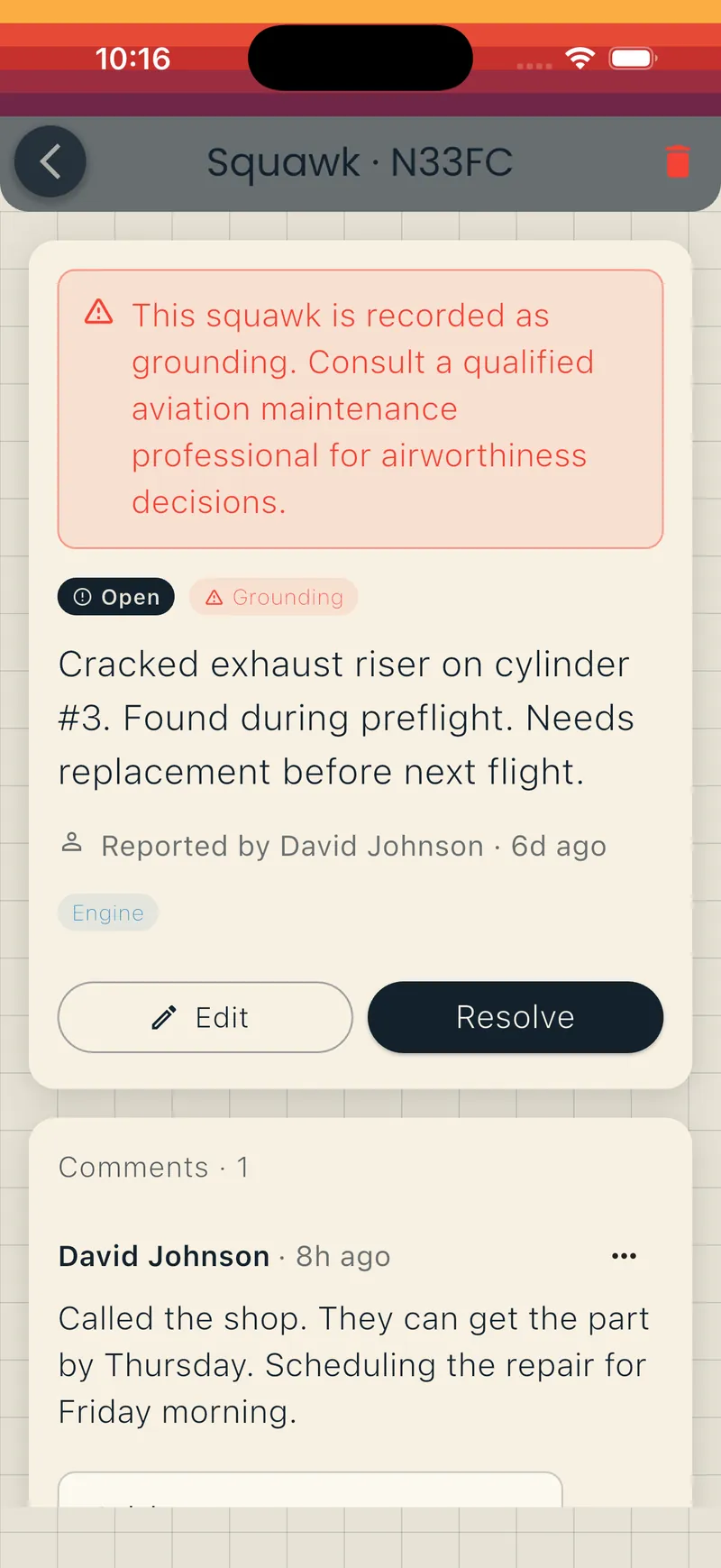
Tap a squawk to open its detail screen.
Resolve
Section titled “Resolve”- Tap Resolve.
- For grounding squawks, confirm in the dialog.
Reopen
Section titled “Reopen”Tap Reopen if the issue returns. No confirmation is needed.
- Tap Edit.
- Change the description.
- Tap Save Changes.
Delete
Section titled “Delete”- Tap the trash icon at the top of the screen.
- Type the confirmation word and tap Delete.
This removes the squawk, its photos, and its comments. This cannot be undone.
Comments
Section titled “Comments”- Scroll to the composer at the bottom of the detail screen.
- Type a message and tap send.
To edit your comment:
- Tap the menu icon on your comment.
- Tap Edit, change the text, and tap Save.
To delete your comment:
- Tap the menu icon on your comment.
- Tap Delete.
- Type the confirmation word and tap Delete.