Hangar Members
A hangar is a shared workspace for everyone involved with your aircraft. Invite your co-owners, family, or mechanic, give each person a role that fits, and you all see the same aircraft, logbooks, and squawks.
| Role | Access |
|---|---|
| Officer | Full control. All Manager abilities plus removing members, deleting aircraft, and deleting the hangar. |
| Manager | Add and edit aircraft, manage logbooks, create alerts and squawks, invite members. Cannot remove members. |
| Member | Read-only. Can post squawk comments. |
Viewing members
Section titled “Viewing members”Open your hangar and tap Members.
Inviting a member
Section titled “Inviting a member”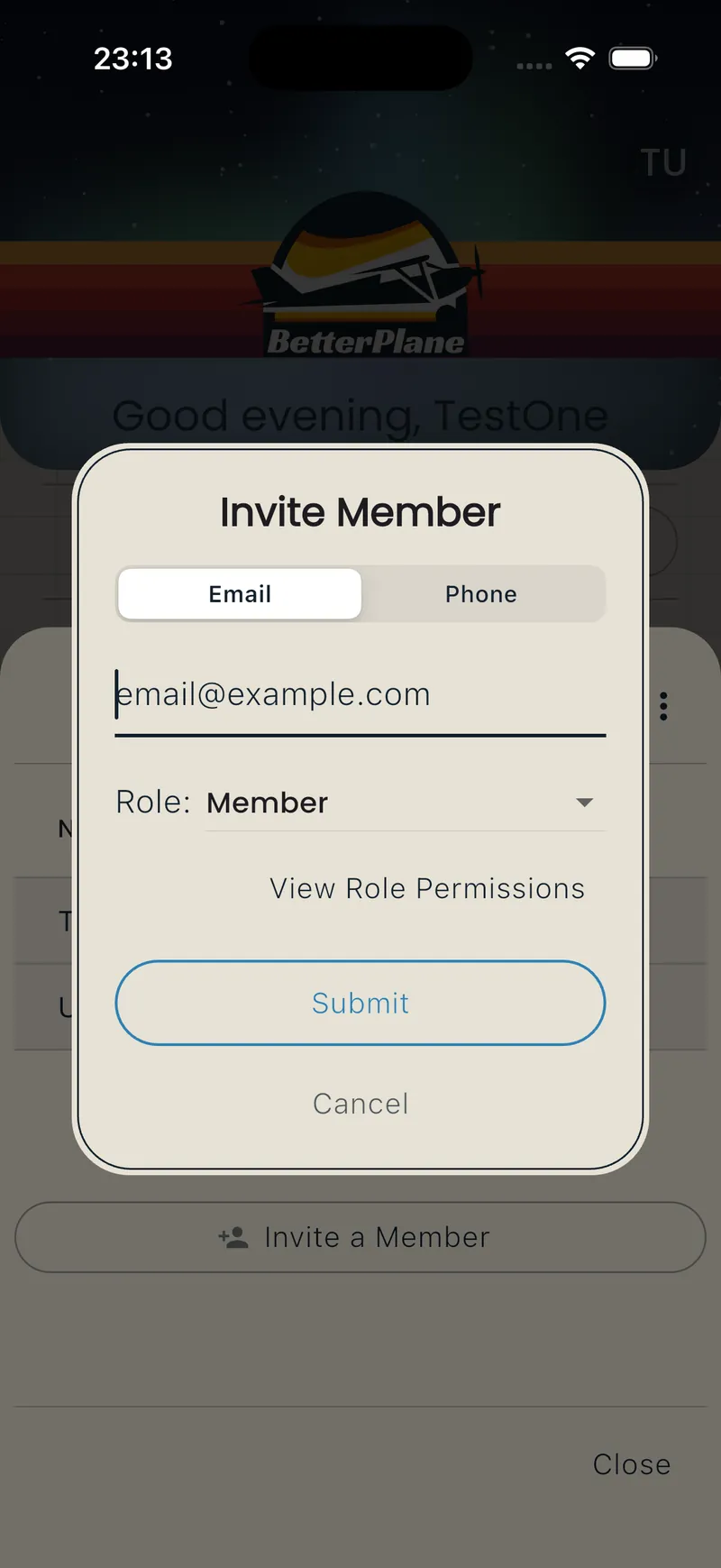
- Tap Invite a Member at the bottom of the members list.
- Choose Email or Phone.
- Enter the address or number.
- Select a role.
- Tap Submit, then confirm.
The invite appears under Pending Invites. You can resend or cancel from there.
Accepting an invite
Section titled “Accepting an invite”A Hangar Invites card appears on your home screen. Tap Accept to join or Reject to decline.
Removing a member
Section titled “Removing a member”Officers only.
- Tap the menu button in the Members modal.
- Tap Remove a Member.
- Tap the delete icon next to the member and confirm.
You cannot remove yourself. Use Leave Hangar instead.
Leaving a hangar
Section titled “Leaving a hangar”- Tap the menu button in the Members modal.
- Tap Leave Hangar and confirm.
If you are the last Officer or Manager in the hangar, promote another member first.
Menu by role
Section titled “Menu by role”| Menu item | Officer | Manager | Member |
|---|---|---|---|
| Invite a Member | Yes | Yes | No |
| Remove a Member | Yes | No | No |
| Leave Hangar | Yes (unless last Officer or Manager) | Yes (unless last Officer or Manager) | Yes |